Digital Product Help

How to Print Your Scriptures & Schedules PDFs

Prepare your file, check your settings, and print with confidence.

Bible Study Methods Starter Kit digital cover shown on a tablet beside a printable page

Five steps to print with confidence

1

Download and save your PDF

After checkout, use the download link in your order confirmation email, or sign in and go to My Account → Downloads. Save the PDF to your computer or device, then open it from that saved location in a PDF reader such as Adobe Acrobat Reader or Preview on a Mac, rather than printing from a browser preview. A PDF reader gives you more control over print settings.

2

Check the file's paper size

Check what paper size the PDF was made for, and load the same paper in your printer. In Adobe Acrobat Reader, go to File → Properties and look at Page Size. In Preview on a Mac, go to Tools → Show Inspector. You can also check the product description or any instructions included with your purchase. US Letter (8.5 × 11 in) is the standard home paper size in Canada and the U.S.; A4 is common in many other countries. A mismatch can cause cropped edges or extra white space.

3

Open print settings

Open the print dialog from your PDF reader. Confirm the paper size and orientation (portrait or landscape) match the file. Choose a scaling option: Actual size (or 100%) keeps the file’s intended dimensions; Fit to page resizes the content to fit your printer’s printable area. Use the print preview to see which looks right. You can also choose colour or greyscale here.

4

Print one test page

Set the page range to a single page, such as page 2, and print it. This lets you check size, layout, and colour before using more paper and ink.

5

Review before printing the rest

Use the checklist below. If everything looks right, print the remaining pages, or only the pages you need. Only use double-sided printing if your printer supports it and you have tested it, and follow any product instructions about it.

How size, orientation, margins, and scaling affect the result

  • Paper size: If the file and your paper differ in size, the content may be cropped or surrounded by extra white space. Matching them gives the most predictable result.
  • Orientation: A landscape page printed in portrait (or the reverse) will be shrunk or cut off. Check the preview.
  • Margins: Most home printers cannot print right to the edge, so a thin white border is normal. Content very close to the edge may be trimmed at Actual size.
  • Scaling: Actual size keeps lines and writing spaces at their intended size when the file and paper match. Fit to page shrinks (or enlarges) the content so the whole page fits within the printable area, which is helpful when sizes differ or edges are being cut off, though lines will be slightly smaller. Some borderless options enlarge the page slightly and trim the edges.

Need more help?

If you are still having trouble printing your file, we are here to help.

Your test-page checklist

Use this quick checklist before printing the rest of your file.

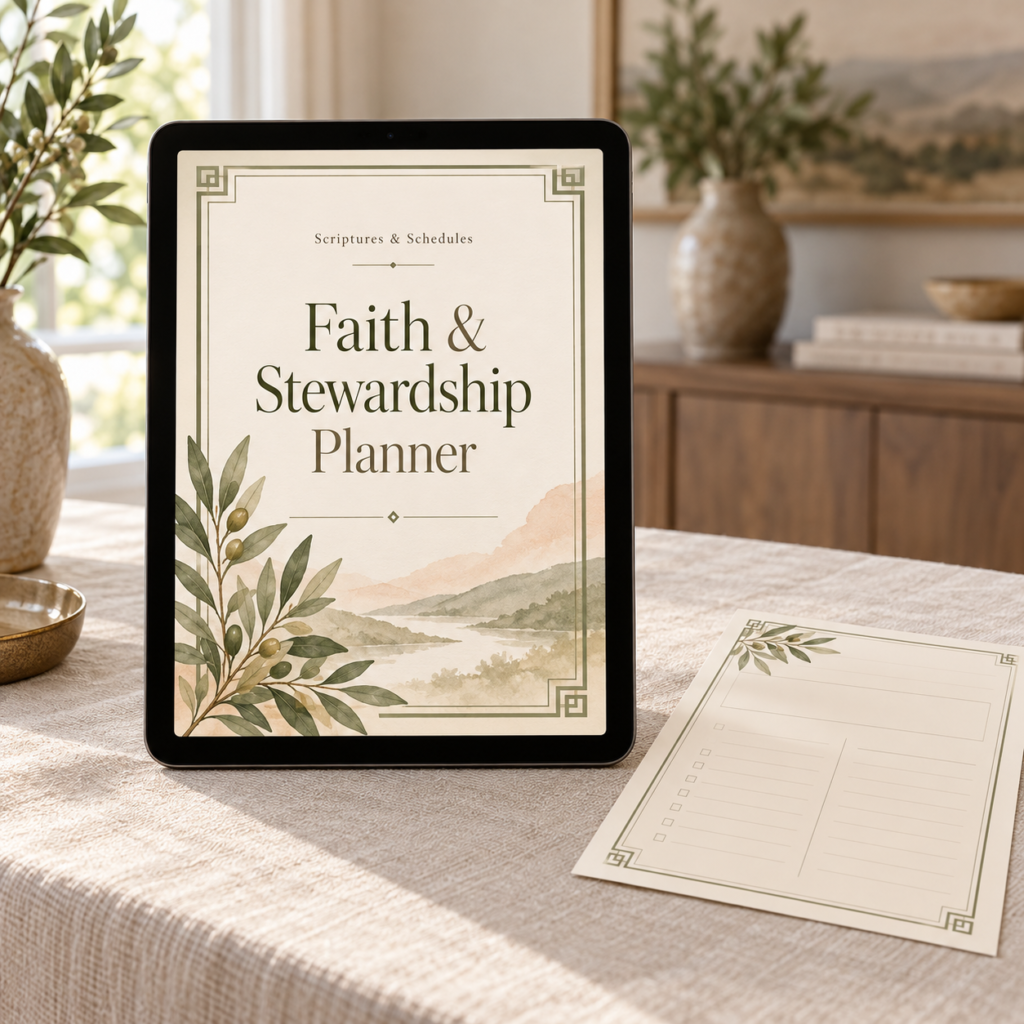
Faith & Stewardship Planner digital cover shown on a tablet beside a printable page

Actual size vs. Fit to page

Actual size (or 100%) prints the file at its intended size. Fit to page resizes the content to fit the printable area, which usually adds a little white space around it.

Actual size

Page content

Content prints at its intended size and can reach close to the edges.

Fit to page

Page content

Content is resized to fit the printable area, with wider margins.

Illustration only. It shows the general idea and does not represent the dimensions of any specific product.

Frequently asked questions

Why are the edges cut off?

Usually because the file’s paper size does not match the paper in your printer, or because content sits close to the edge and your printer cannot print there. Check that the paper size and orientation match, then try Fit to page in the print settings and look at the preview. A borderless setting can also trim edges, so turn it off if it is on.

Why does the colour look different?

Screens and printers display colour differently, so printed colours rarely match the screen exactly. Paper type, ink levels, and printer quality settings also make a difference. Try a higher-quality print setting, check your ink, and print a test page. If you prefer, print in greyscale for writing pages.

Can I print double-sided?

Only if your printer supports it, and only after a test. Print one sheet double-sided first to check that the pages line up and face the right way, and follow any instructions included with your purchase. Some pages may be designed to be printed single-sided.

What paper should I use?

Standard printer paper works for most pages. A slightly heavier paper reduces ink showing through, and light cardstock is sturdier for cards, if your printer supports it. Check your printer’s manual for the paper weights it can handle.

Can I print at a print shop?

Yes. Bring the PDF on a USB drive or email it to the shop. Ask them to print at actual size on your chosen paper and to print one proof page first.

What am I allowed to print?

Please review our Terms of Use & Digital Product License for how you may use and print your files.

Check the instructions included with your purchase for product-specific settings.

Item $0.00
Loadding...